汎用コンポーネント
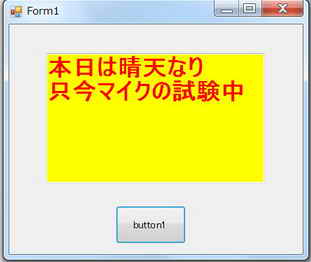
| textBox1.ForeColor( ) textBox1.BackColo( )で変更 | 実行結果 | |
|
<プログラム例>
using System;
using System.Collections.Generic;
using System.ComponentModel;
using System.Data;
using System.Drawing;
using System.Linq;
using System.Text;
using System.Windows.Forms;
namespace textBoxColor
{
public partial class Form1 : Form
{
public Form1()
{
InitializeComponent();
}
private void button1_Click(object sender, EventArgs e)
{
textBox1.ForeColor = Color.Red; //文字色変更
textBox1.BackColor = Color.Yellow; //文字背景色変更
textBox1.Text = ("本日は晴天なり\r\n"); // \r(復帰) \n(改行)
textBox1.Text += ("只今マイクの試験中"); // += 前の文字列に、本行の文字列をつなげる
}
}
}
|
![]() |
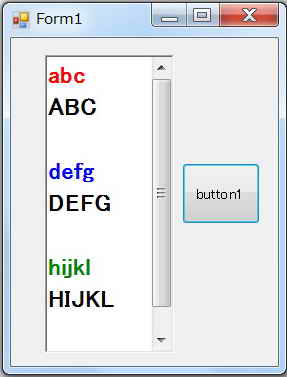
■ リッチテキストボックス行単位の文字追加・改行・文字色変更
| richTextBox1.SelectionColor、richTextBox1.SelectedText、\r | 実行結果 | |
|
<プログラム例>
using System;
using System.Collections.Generic;
using System.ComponentModel;
using System.Data;
using System.Drawing;
using System.Linq;
using System.Text;
using System.Windows.Forms;
namespace textBoxColor
{
public partial class Form1 : Form
{
public Form1()
{
InitializeComponent();
}
private void button1_Click(object sender, EventArgs e)
{
richTextBox1.SelectionColor = Color.Red; //赤色を選択
richTextBox1.SelectedText= "abc\r\n"; //次の文字列だけ赤色選択
richTextBox1.SelectedText += "ABC\r\n\n"; //元の色に戻る
richTextBox1.SelectionColor = Color.Blue; //青色を選択
richTextBox1.SelectedText += "defg\r\n"; //次の文字列だけ青色選択
richTextBox1.SelectedText += "DEFG\r\n\n"; //元の色に戻る
richTextBox1.SelectionColor = Color.Green; //緑色を選択
richTextBox1.SelectedText += "hijkl\r\n";//次の文字列だけ緑色選択
richTextBox1.SelectedText += "HIJKL\r\n\n"; //
}
}
}
|
![]() |
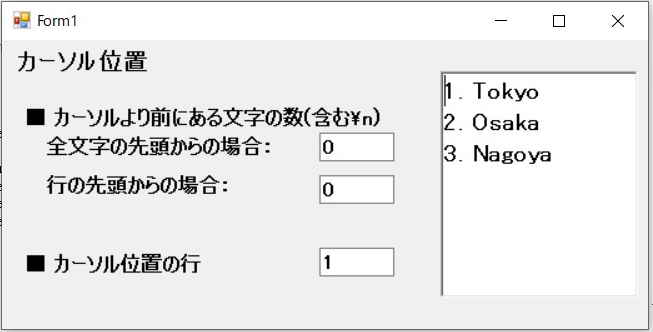
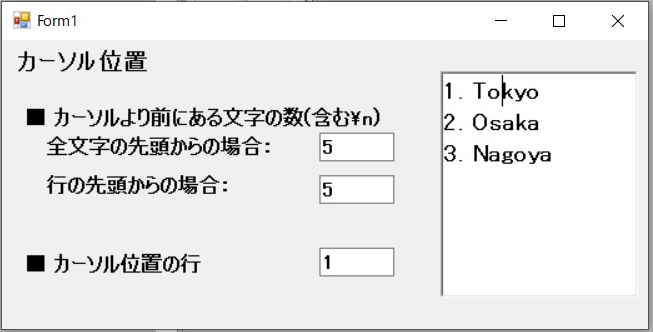
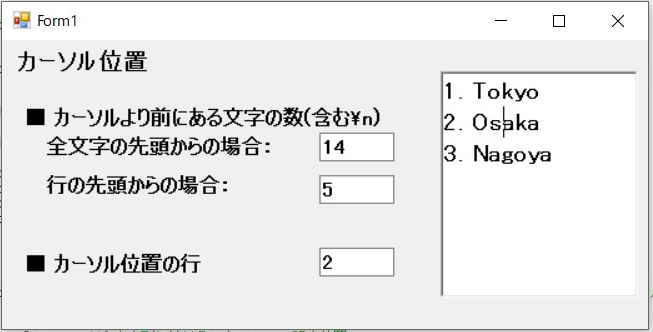
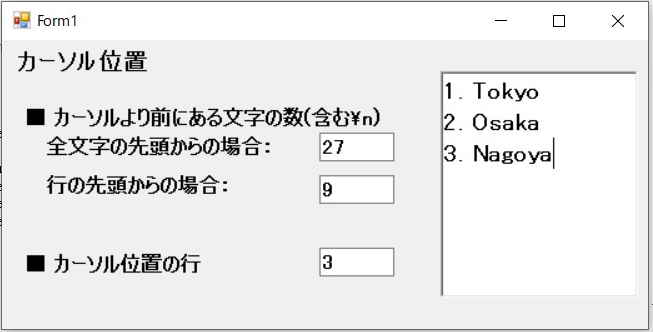
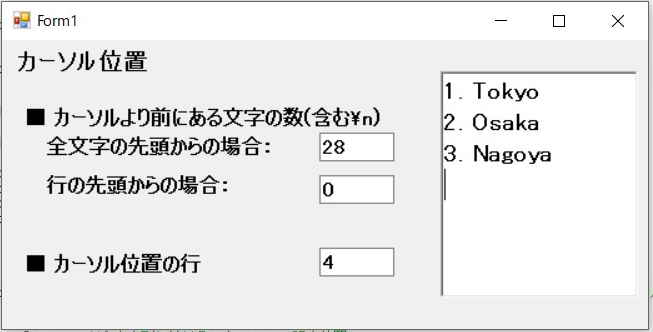
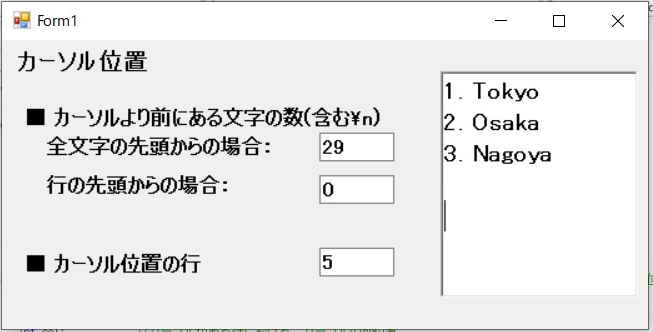
| リッチテキストボックス内のカーソルの位置(列と行)を取得します。 列はカーソルがある位置の前方にある文字の数とします。 ・ richTextBox1.SelectionStart で全文字列に於ける前方文字数を取得できます。 ・ 前方文字の中には改行の \n が含まれていることから、\nの数を数えて行数を計算します。 ・ str.IndexOf('\n', startPosi)より、 IndexOf()メソッドを使い 文字列strのstartPosi番目以降で何番目に\nがあるかを取得し行をカウントします。 ・ カーソル位置変更のイベントはrichTextBox1_SelectionChanged(object sender, EventArgs e)関数の中に記載する。 |
||
using System; |
||
| <動作結果> | ||
![]() |
![]() |
|
![]() |
![]() |
|
![]() |
![]() |
|
| リッチテキストボックスに於いて、 カーソルがある行を選択して文字列を取得します。 | ||
using System;using System.Collections.Generic; |
||
| 実行結果 | ||
| 1行目選択 | ![]() |
|
| 3行目選択 | ![]() |
|
| 6行目選択 | ![]() |
|
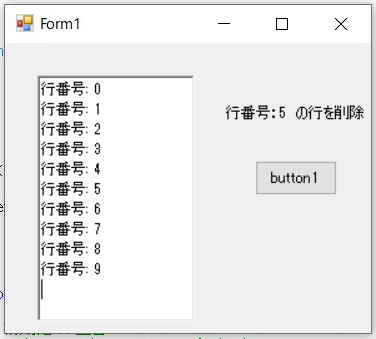
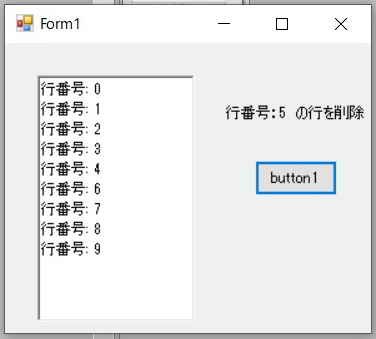
| リッチテキストボックスの 5行目を削除する例です | ||
using System; |
||
| 実行結果 | ||
| 実行前 | 実行後 | |
![]() |
![]() |
|
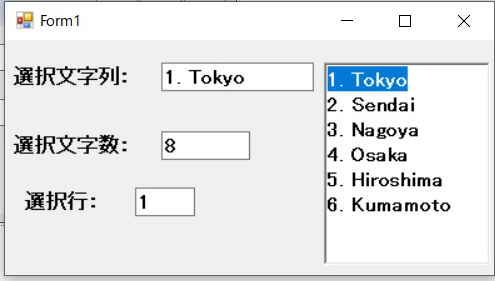
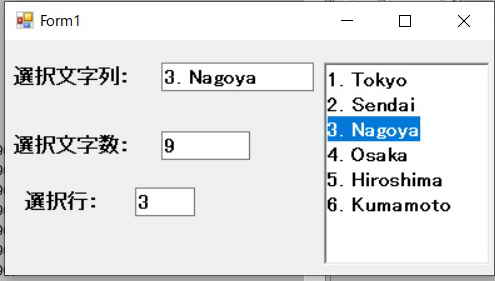
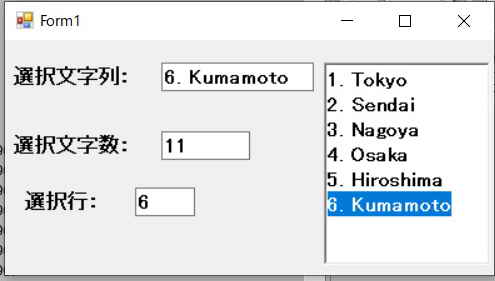
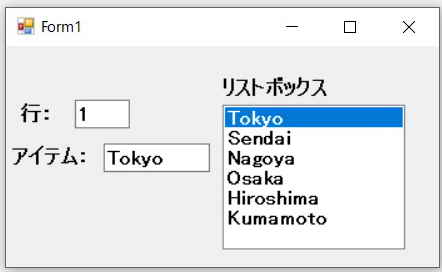
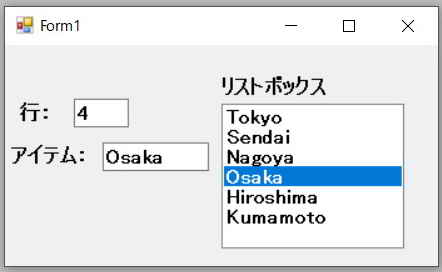
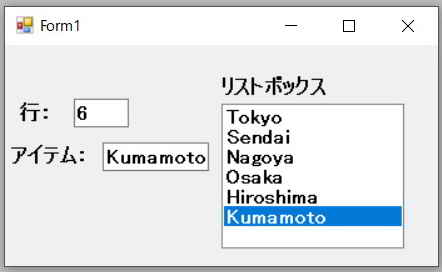
| リストボックスに於いて、 カーソルがある行を選択して文字列を取得します。 行を検出する関数が用意されているので、リストボックスにくらべて格段に簡単です。 |
||
using System; |
||
| 実行結果 | ||
| 1行目選択 | ![]() |
|
| 4行目選択 | ![]() |
|
| 6行目選択 | ![]() |
|
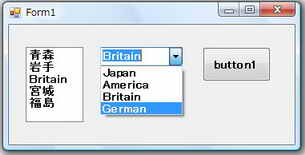
| Britainを選択してボタンをクリックするとItem[2]がBritainになります。 |
実行結果 | |
<プログラム例>
using System;
using System.Collections.Generic;
using System.ComponentModel;
using System.Data;
using System.Drawing;
using System.Linq;
using System.Text;
using System.Windows.Forms;
namespace CombListBox
{
public partial class Form1 : Form
{
public Form1()
{
InitializeComponent();
comboBox1.Items.Clear(); //コンボボックス値クリア
comboBox1.Items.Insert(0, "Japan"); //Item[0]設定
comboBox1.Items.Insert(1, "America"); //Item[1]設定
comboBox1.Items.Insert(2, "Britain"); //Item[2]設定
comboBox1.Items.Add("German"); //アイテム追加
comboBox1.SelectedIndex = 2; //初期値設定
listBox1.Items.Clear(); //リストボックス値クリア
listBox1.Items.Insert(0, "青森");
listBox1.Items.Insert(1, "岩手");
listBox1.Items.Insert(2, "秋田");
listBox1.Items.Insert(3, "宮城");
listBox1.Items.Add("福島");
}
private void button1_Click(object sender, EventArgs e)
{
listBox1.Items[2] = comboBox1.SelectedItem; //コンボボックスス選択値をリストボックスItem[2]にセット
}
}
}
|
![]() |